The whole toolkit / BATIQ features
Quite a lot,
actually.
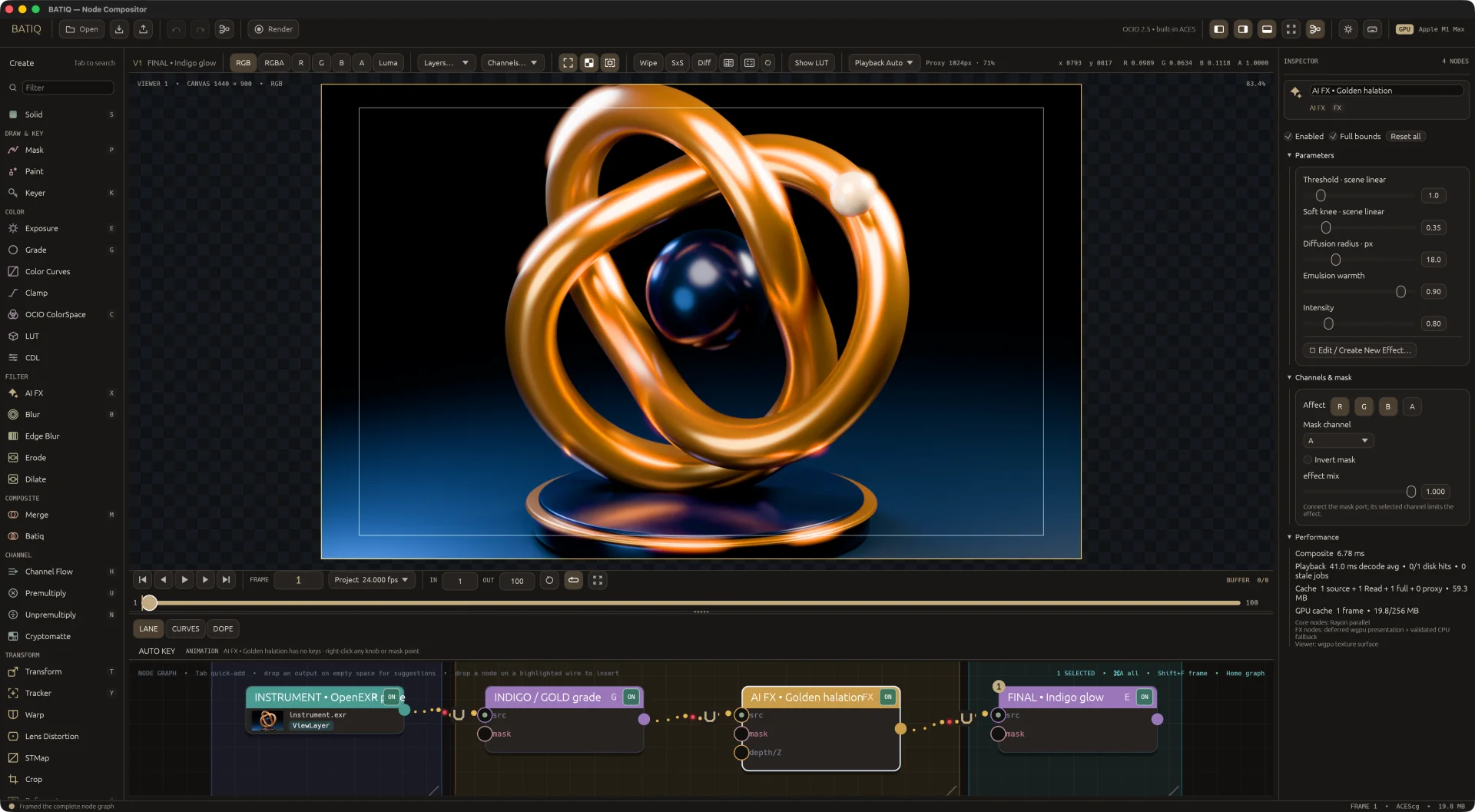
The showcase is just the opening act. Here’s what’s already in the box, from the first Read to the final Write.
97 things to play with10 creative cornersFree to explore
01 / Media & image foundations
Bring your pixels.
32-bit float compositing
Keep the highlights, the shadows, and the values in between in a scene-linear image core.
OpenEXR, layers & channels
Read and write half- and full-float EXRs, with arbitrary flat input channels and layers.
The whole frame
Preserve EXR display and data windows, pixel aspect, and image placement.
Image sequences
Discover and play numbered EXR, DPX, TIFF, PNG, and JPEG sequences.
Video on the graph
Read H.264, ProRes and uncompressed QuickTime from MOV, MP4, M4V, and MKV through the bundled FFmpeg.
Project formats & Read controls
Set resolution, pixel aspect, FPS, and frame range; adjust source offsets, missing-frame behavior, input color space, and premultiplication.
Solid, Crop & Reformat
Make a color from scratch, crop or pad the canvas, or resize to fit, fill, width, height or distort with Lanczos3, Keys, Mitchell, bilinear, and nearest filters.
02 / 3D Set
Build the shot in 3D.
3D Set node
Make cards, planes, spheres, cubes, lights and cameras, or bring in USD and Alembic files, and render them live on the GPU inside the comp.
Light it
Sun, area, point and sky lights; wire an HDRI into the sky to light by it. Soft shadows, shadow catchers, and Fast, Fine or Smooth reflections for clean metal and gloss.
Glowing surfaces
Give any card, plane, cube, sphere or USD mesh an Emission setting and it lights the scene: a screen playing a clip lights the room around it, frame by frame, with soft shadows. Ten glowing objects cost no more than one.
A real camera
Focal length, film back, f-stop and focus distance give depth of field; motion blur follows every object through the shutter. Window translate and scale work as in Nuke, and a file camera brings its own lens and film offset.
Look through a camera
Show the 3D view through any of the Set’s cameras, following its animation. Click a light or camera in the view to edit it.
The object list
Every object, light and camera in the Set sits in one list, from USD and Alembic files or made in the Set. Click the eye on a row to hide it from the 3D view and the render; a hidden camera only leaves the view.
Materials
Colour, roughness and metallic on every object; imported meshes read their normal, roughness, metallic, emission and opacity maps, and see-through materials render as glass.
Plates on cards
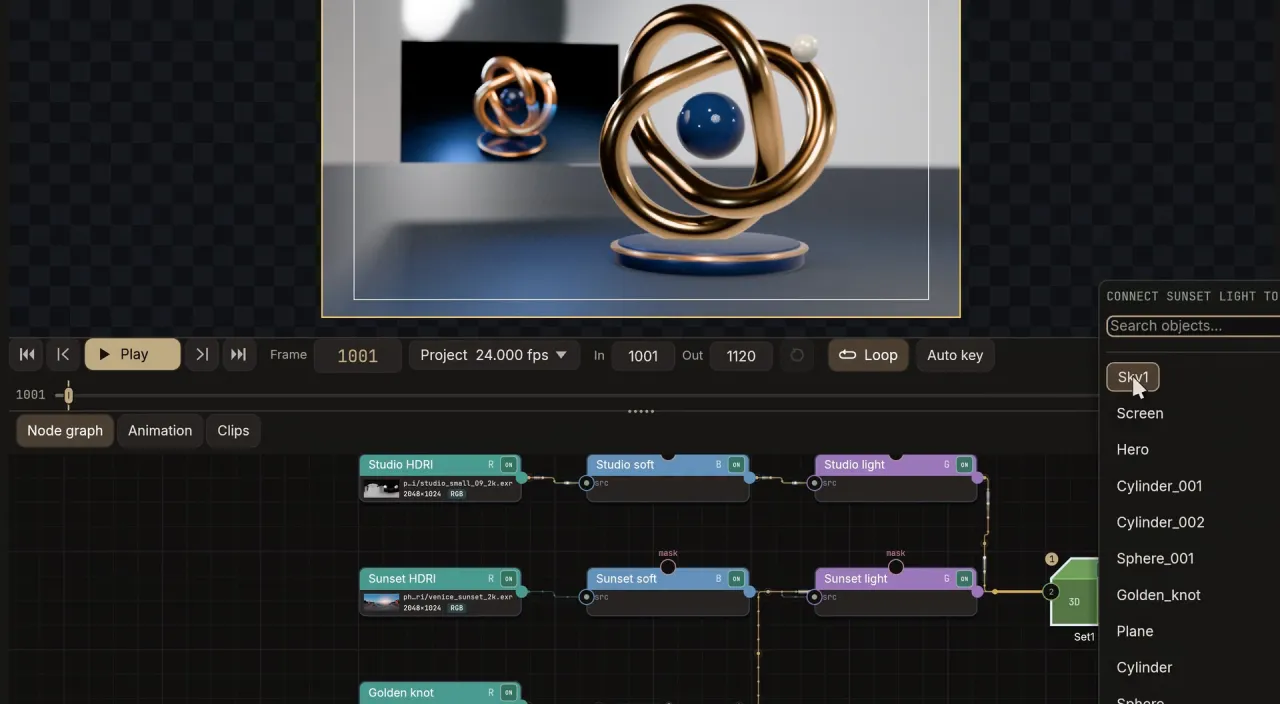
Wire any image onto a card, a plane or an imported mesh. Let go of a wire over the Set and a searchable list of its objects opens; pick one to connect.
Camera projection
Project a plate through a camera onto the scene’s surfaces, and bake it to a UV render for a texture.
Passes for the comp
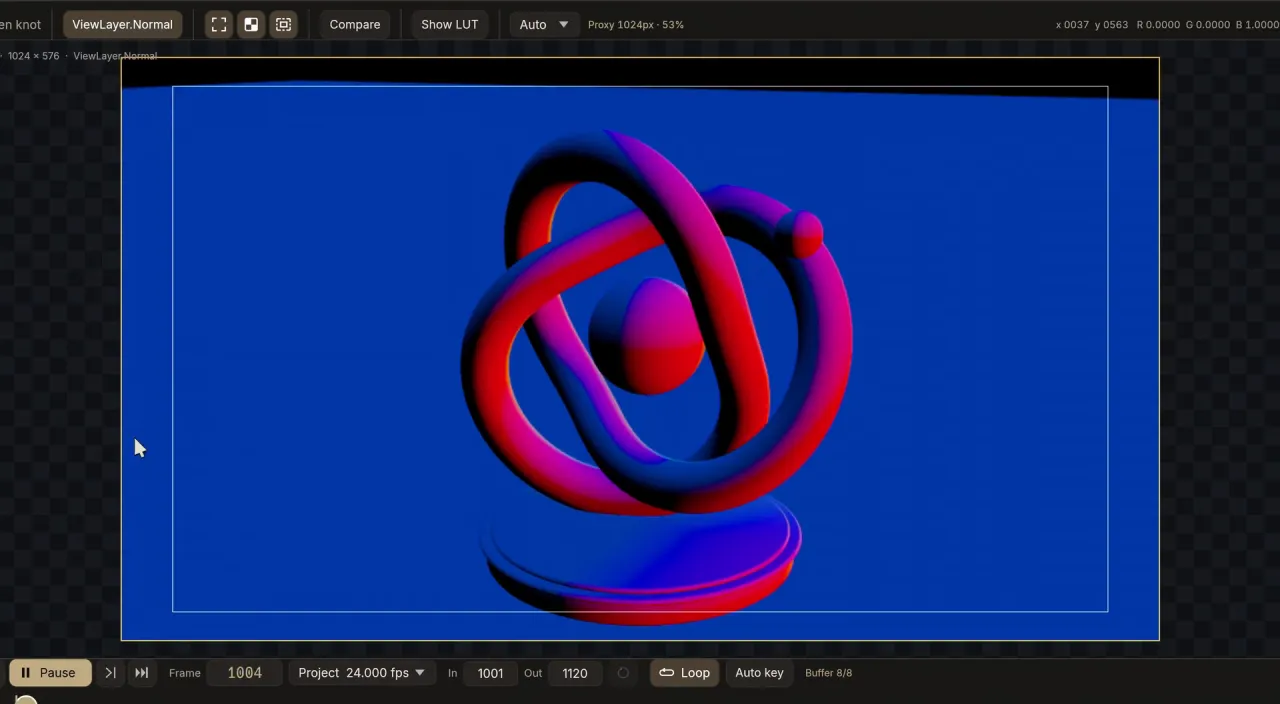
Turn on passes for depth, normals, world position, motion vectors and Cryptomatte, ready for the rest of the graph.
Camera export
Write the Set’s camera as Alembic or USD for Blender, Maya or Nuke.
Disk cache
Rendered frames are kept as EXRs and reused while nothing upstream has changed, so a machine without a GPU can still comp over them.
03 / Compositing & channels
Some assembly encouraged.
Merge operations
Nuke’s Porter-Duff and arithmetic operations (Over, Under, In, Out, Atop, Stencil, Plus, Minus, Divide, Min, Max, Disjoint and Conjoint Over and more) alongside the usual blend modes. Hover one to see its formula.
Batiq / Coverage
Composite edges with an estimate of subpixel coverage overlap.
Channel Flow
Shuffle and Copy in one node: route channels, copy them from either input into any layer, and remove layers. The panel shows what changes, with Quick and Layers tabs.
Light Wrap
Let the background’s light spill over a keyed foreground’s edges, with width, diffuse, intensity, threshold and saturation, and a wrap-only view.
Premultiply & Unpremultiply
Take RGB into and out of premultiplied alpha, by alpha or by any named channel.
Maths
Add, subtract, multiply, divide, power, min, max, absolute, invert, and remap raw channel values.
Channels & masks
Target RGBA, a layer, or a named channel on supported tools; use dedicated mask inputs to keep adjustments local.
Blur, Clamp & Invert
Soften with Gaussian blur, bound values with Clamp, or invert the channels you pick (alpha only by default).
04 / Color & finishing
Give every pixel a mood.
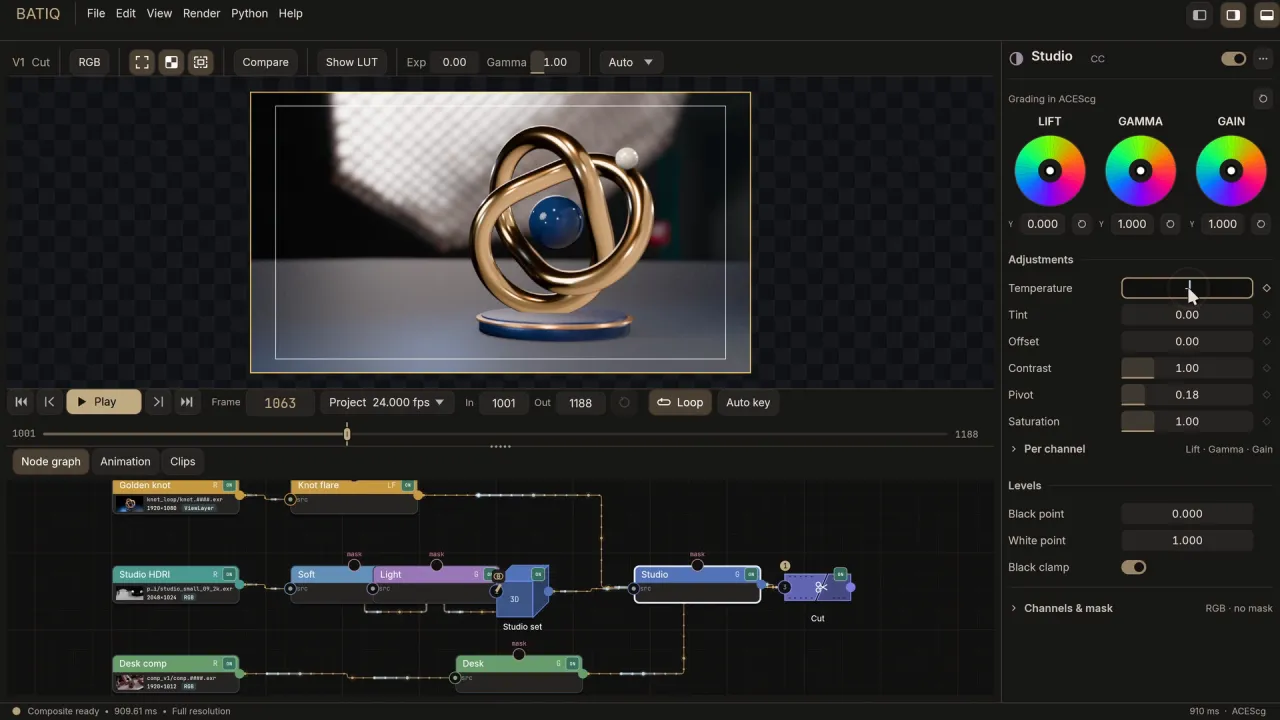
Grade & Exposure
Shape Lift, Gamma, Gain, Offset, Contrast, Pivot, Temperature, Tint, and Saturation, with color wheels, black and white points, an optional black clamp, and per-channel exposure trims.
Color Curves
Sculpt tonal response with editable curves.
LUT & CDL
Apply lookup tables and color decision list adjustments.
OpenColorIO 2.5
Convert between any spaces in the built-in ACES config, a selected .ocio file, or the OCIO environment setting. Custom configs run in full.
Find any color space
Every Colourspace field opens a picker you can search or browse, grouped the way the config groups them and tagged linear, log, video, display or data. Settings › Colour starts from one choice: BATIQ’s default, ACES 2.0 or 1.3, ACES 1.2, or your own .ocio.
ACES viewing
View scene-linear images through the ACES 1.3 and ACES 2.0 display transforms, on the GPU.
Grain Match
Sample a plate’s grain with one button (strength per channel, size, response and colour), then lay matching grain over clean CG, new every frame.
05 / Mattes, roto & paint
Make a little magic. Locally.
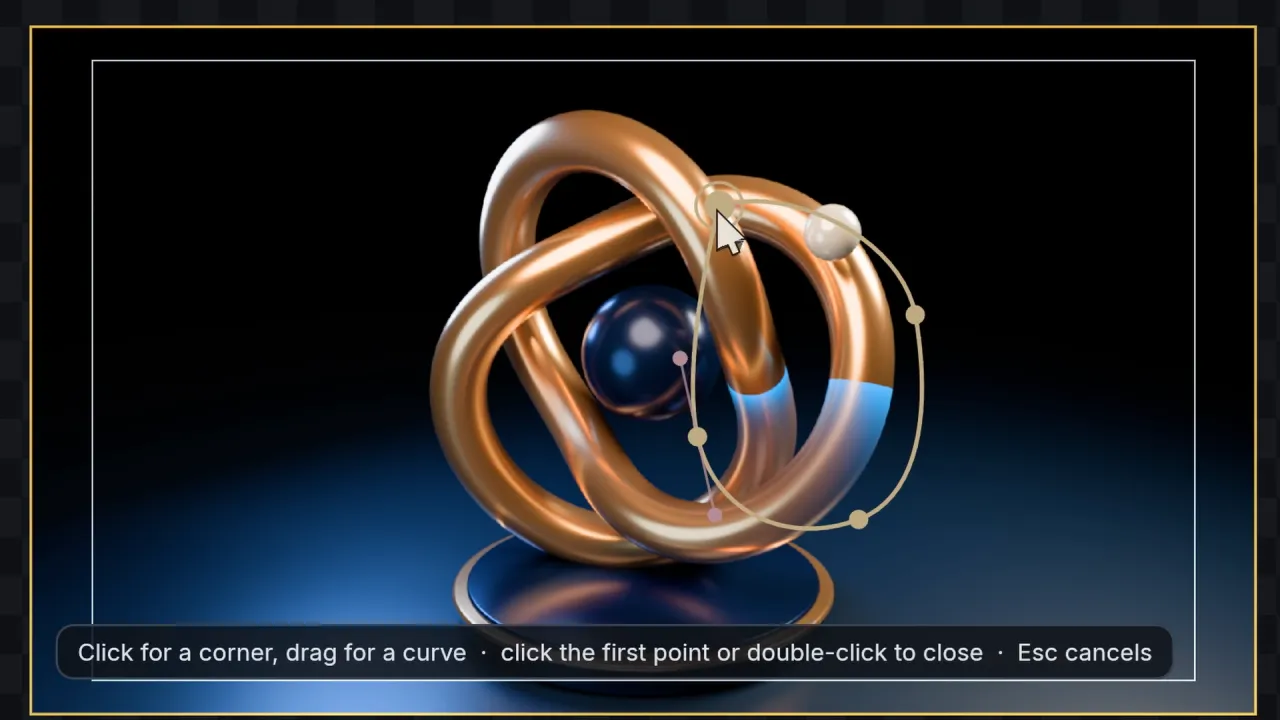
Cryptomatte
Pick objects from Cryptomatte passes and put those selections to work as mattes.
Mask & roto shapes
Draw rectangles, B-splines and Beziers over the Viewer. The Bezier pen (V) clicks for corners and drags for smooth curves, with handles you can break and join.
Feather, opacity & inversion
Feather a whole shape, or drag a point’s feather handle in the Viewer to feather just that point. Set opacity and inversion per shape; shapes go into alpha and the input’s RGB passes through.
Animated roto
Moving one point keys the whole shape at that frame, Bezier handles animate with it, and inserted points keep the animation.
Keyer
Pull a soft matte from a picked colour or from luminance, with tolerance, softness, inversion, and an optional premultiplied output.
Green & blue screen keying
The Keyer’s Screen mode is built for real plates: pick the screen colour, fill holes with a core matte, recover edge colour for hair and motion blur, and despill with a skin-safe bias. No clean plate? It makes one.
Clone paint
Use the Paint node to clone image detail with a brush.
Edge Extend
Give a key’s soft edges and hair the colour of the solid subject next to them, losing green spill while keeping their brightness and transparency.
Erode, Dilate & Edge Blur
Shrink, grow, and soften mattes for a better fit.
06 / Transform, tracking & animation
Put things in motion.
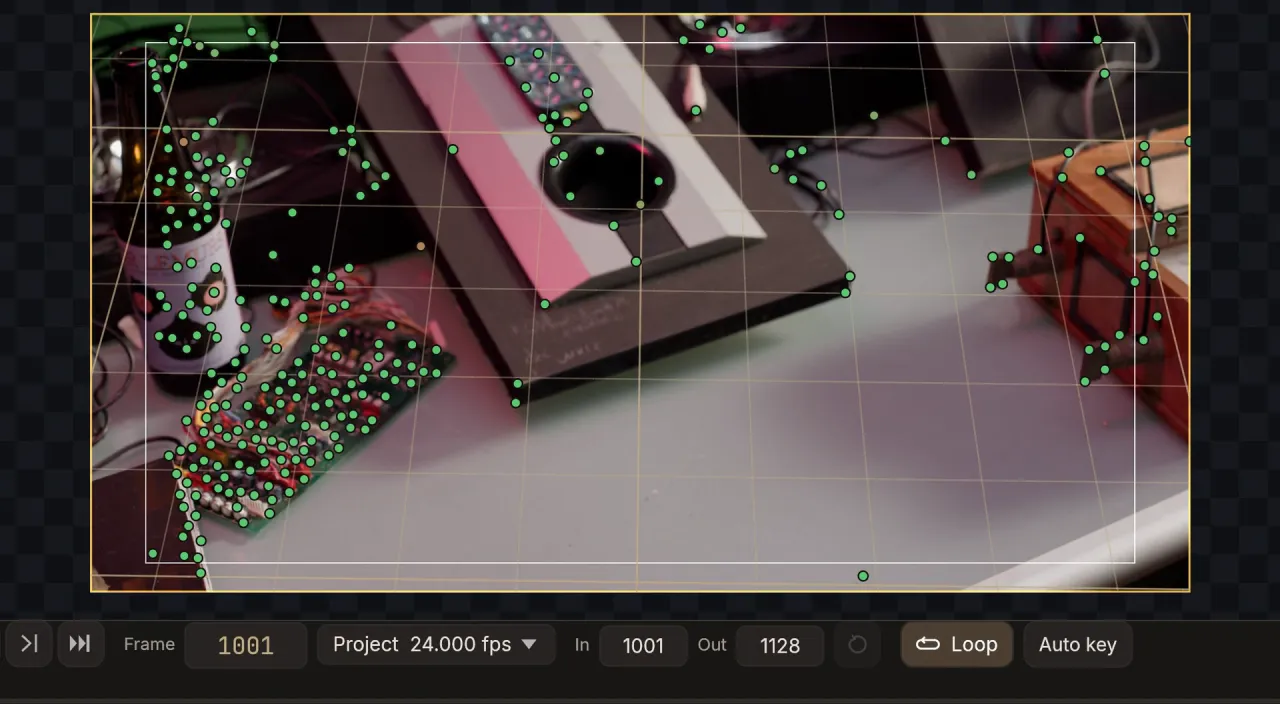
Transform
Translate, rotate, scale, and move the pivot with Viewer controls and animatable parameters.
Corner pin & grid warp
Pin four corners in perspective, then add grid points for curved deformations in the same Warp node.
2D point tracking
Track image patterns with editable markers, search boxes, and a visible solved path.
Match-move & stabilize
Apply translation, rotation, and scale solves, or remove jitter; tracking runs in the background and can be stopped.
Camera Tracker
Track features automatically and solve the camera and focal length, with lens distortion if you want it. Set the ground, origin and scale from solved points; the solve runs in the background.
Camera to a 3D Set
Send the camera and a point cloud to a 3D Set in one click, or link the Set so it follows every re-solve. Put a card, plane, cube or sphere on picked points.
Lens Distortion & STMap
Distort or undistort a lens, and remap an image through an ST map read from any named layer.
Motion blur
Transform, Tracker and roto shapes blur along each pixel’s real path through the shutter, with a Quality setting. Chained Transforms concatenate, so the image is filtered once.
Vector Blur
Motion-blur CG renders from their motion-vector pass. Presets find the vectors for Nuke, Redshift, Arnold, Cycles, RenderMan, V-Ray, Unreal, Karma, Octane and Mantra; a depth channel keeps still foreground sharp.
Keyframes & curve editor
Animate node parameters with Step, Linear, Ease In, Ease Out, and Smooth interpolation, plus Auto Key and exact frame editing. Warp points get the same point menu, nudging and keying as roto points.
Expression Studio
A little wiggle. A big personality. Build procedural animation with wave, noise, bounce, and spring presets. Shape the motion, blend its influence, preview it live, or edit the formula. No baked keyframes.
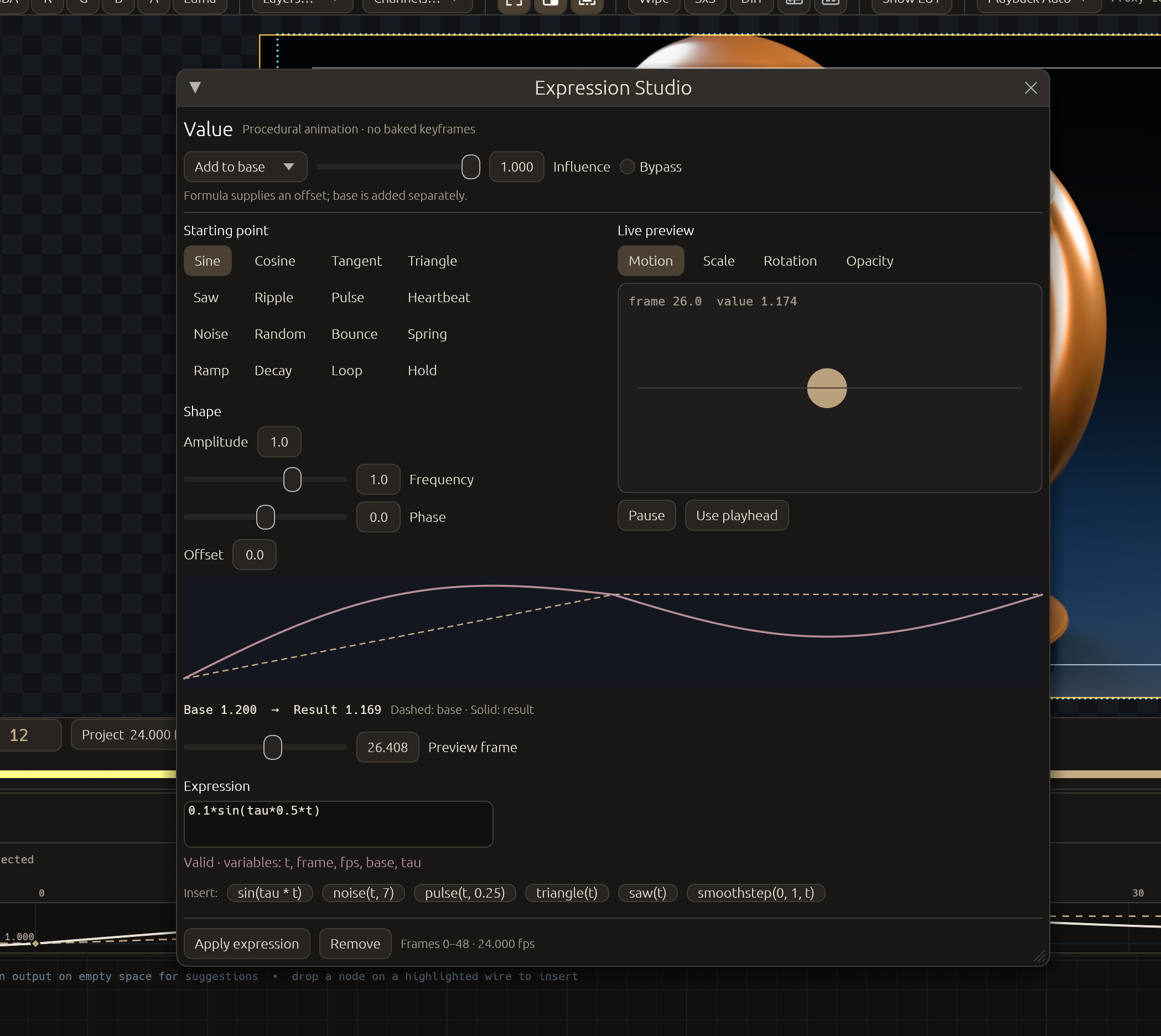 Open screenshot ↗
07 / Graph & reusable setups
Big ideas. Tidy graphs.
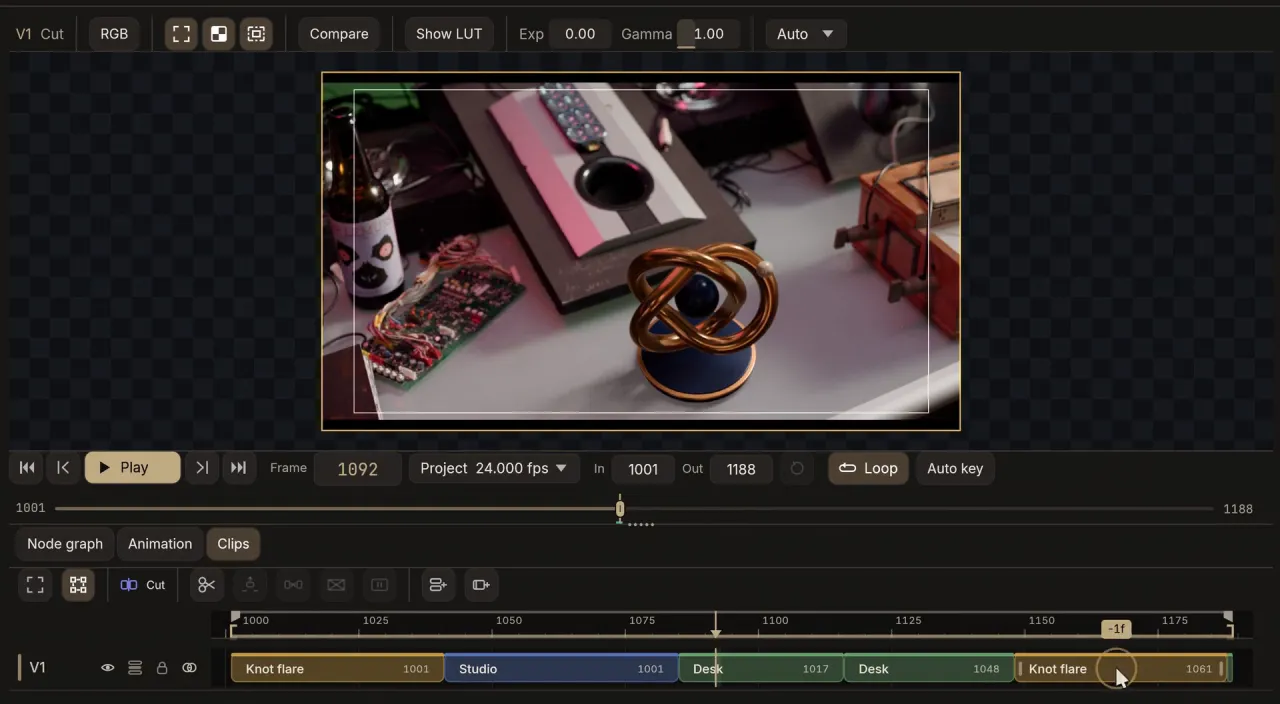
Edit node
Cut Reads or whole comp branches on tracks inside the graph: trim, roll, slip, slide, lift and ripple delete. Change anything upstream and the cut plays it. OpenTimelineIO in and out from scripts.
Retime, holds & dissolves
Change a clip’s speed, reverse it, or shape a retime curve; blend frames for smooth slow motion. Holds and dissolves are one click from the clip’s menu.
Freeze Frame
Hold a node’s input on one frame for the whole timeline, like Nuke’s FrameHold. Press Hold this frame to keep the one you’re on, or key the frame to step the hold through a shot; the same plate still plays live elsewhere in the comp.
Horizontal or vertical
Build your graph in either orientation, with shared port and connection behavior.
Quick-add & smart connections
Search tools with Tab, even by the names you know from Nuke (framehold, shuffle, grade, over, postage stamp), connect from either end, insert a node on a wire, get next-node suggestions, and lift selected nodes out of a chain with Ctrl+X.
Inputs open as you wire
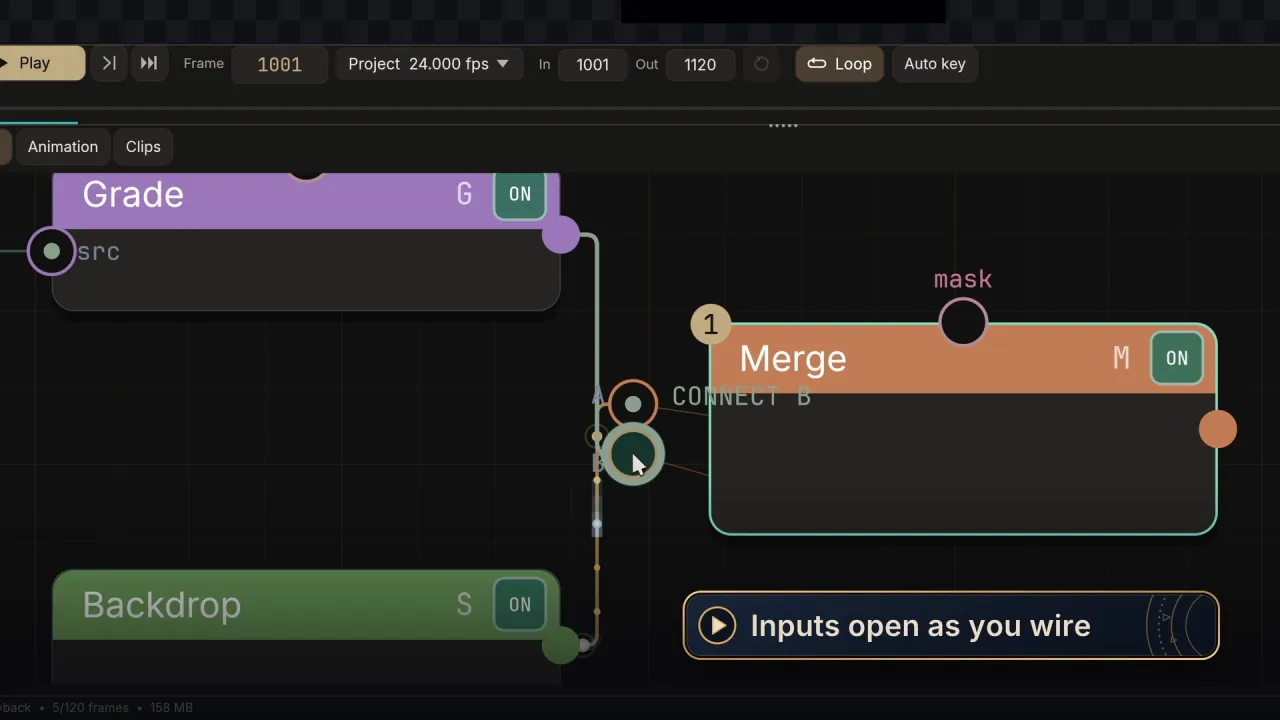
Drag a wire near a node and its inputs open on an arc, so you drop straight onto the one you want.
Living wires
Wires sit calm at rest and show a pulse when something upstream re-renders, so you can see what an edit touched.
Remote Link & Linked Input
Send an image, a colour or a value to named wireless receivers without a wire crossing the whole graph.
Functions
Package node setups into reusable functions with exposed controls and shared master edits.
Switch & Variants
Choose graph branches, organize options and presets, and render combinations through Write permutations.
Backdrops, magnets & layout
Organize sections of a graph with backdrops; connected nodes snap into alignment, horizontally or vertically, and auto-layout tidies the rest.
Disable, reset & undo
Bypass a node, reset an individual control or a whole node, and step back through 64 levels of graph undo/redo.
08 / NodeGen & image effects
Prompt a Node into existence.
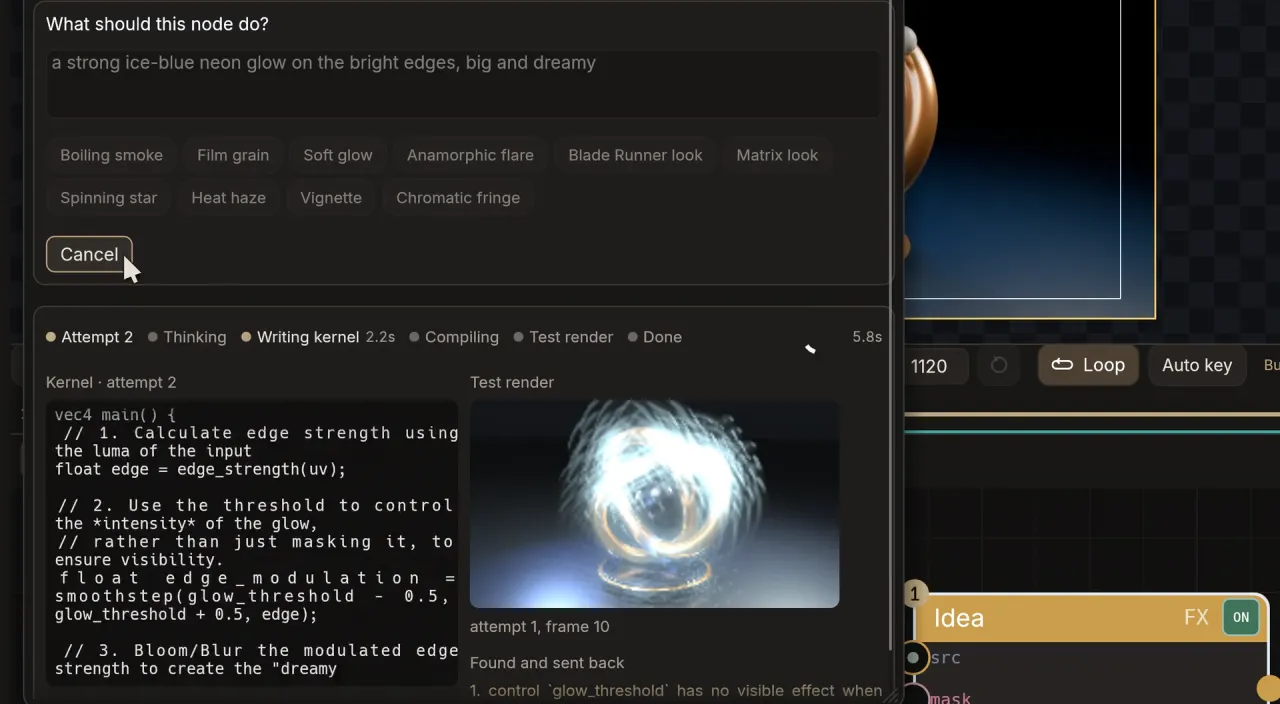
NodeGen
Describe an effect and a model writes it as a small kernel script. BATIQ compiles it for the GPU and the CPU, test-renders it, and sends any problem back to the model to fix. With a local Ollama model nothing leaves your machine; without a model, the closest preset is used.
Pick your model
Choose the model in the Inspector; one Generate puts the result straight onto the node as a single undo step. Tick “Claude Code and Codex” to use your own installed tools, on your own subscription.
It checks its own work
A model that can read images looks at its test render, compares it with your request, and rewrites the kernel when it is wrong.
More than one image
Kernels can take extra image inputs, read their render layers, and compute whole images in stages, so a glow can find the highlights before blurring them.
Code you can keep
Read and edit the script in the Code tab, animate its controls, add masks, and save it with your project. Apply is one undo step.
Lens Flare
A photoreal flare from a light you drag in the Viewer, with six lens looks: Cinematic Prime, Anamorphic Blue, Hard Sun, Vintage Uncoated, Sci-Fi Energy and Clean Glint.
Light & atmosphere
Build looks with optical halation, HDR-protected bloom, and filmic contrast.
Focus & detail
Explore detail equalization, depth-driven defocus, and shaped-aperture lens defocus.
Distort & refract
Use turbulence refraction, lens distortion, and chromatic fringing or correction.
GPU processing
Supported effects and node chains use GPU compute, with CPU fallback paths. Performance depends on the graph and hardware.
09 / Viewer & everyday workflow
Stay in the flow.
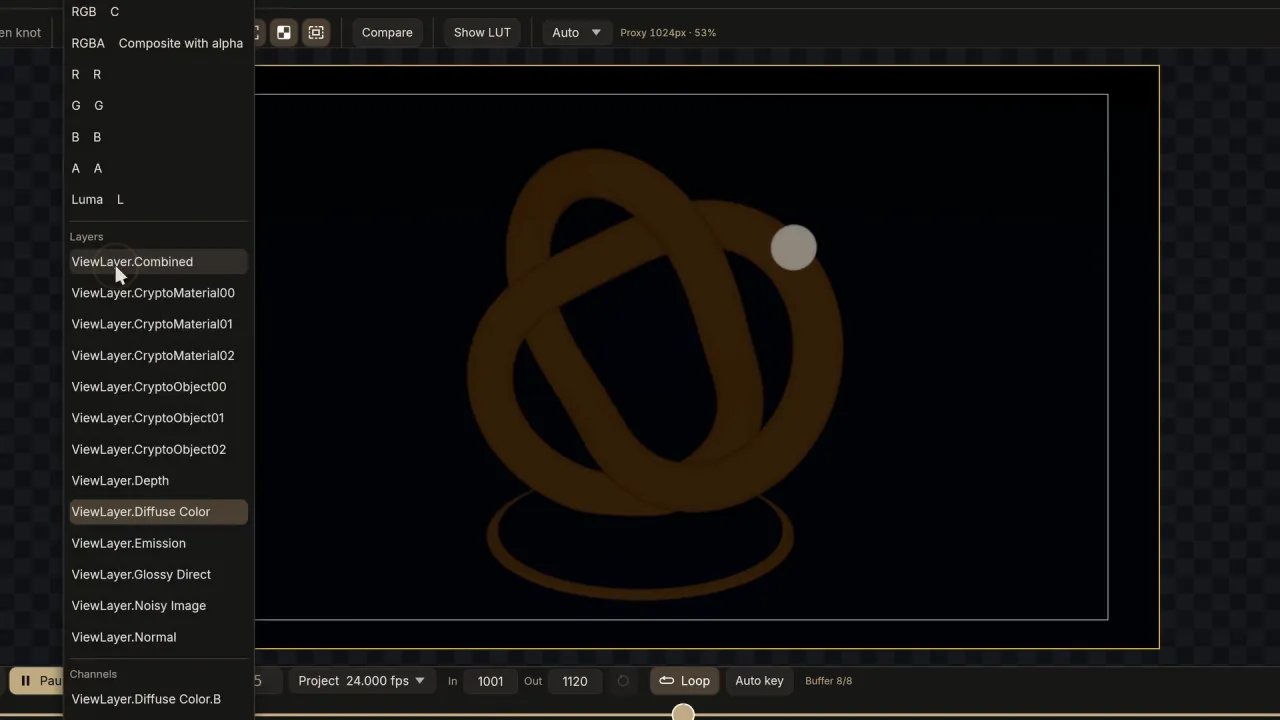
Graph, Viewer & timeline
Build the comp, see the frame, and work with clips and animation in one native workspace.
Numbered Viewer routing
Select a node and press 1–9 to send it to a numbered Viewer.
Compare views
Inspect alternative results with Viewer comparison and wipe controls.
Interactive overlays
Edit transforms, masks, warps, paint, and tracking directly against the image.
4K playback at Full
Finished Viewer frames are cached on the GPU and on disk, so long 4K EXR comps play in real time at full resolution and stay cached when you reopen the project.
Caching & proxies
Parallel decoding, render-ahead, RAM caches sized from installed memory, and smaller proxy tiers when you want them.
Menus & channels
File, Edit, View, Render, Python and Help menus, the same on every OS, with New, Save As, Open Recent, Revert and an unsaved-changes prompt; a Viewer channel menu you can filter by typing.
One file browser
Every Open, Save, Read, Write and LUT chooser uses BATIQ’s own browser, the same on every OS. Sequences show as one line with their frame range and missing frames, Tab completes typed paths, the preview shows resolution, channels and color space, and slow network shares never freeze the app.
Report a bug from the app
Help › Report a Bug and Send Feedback write straight to the developer, with system details and the recent log attached only if you leave them ticked. After an unexpected close, the next launch offers to send that session’s report.
10 / Rendering & automation
From happy accident to output.
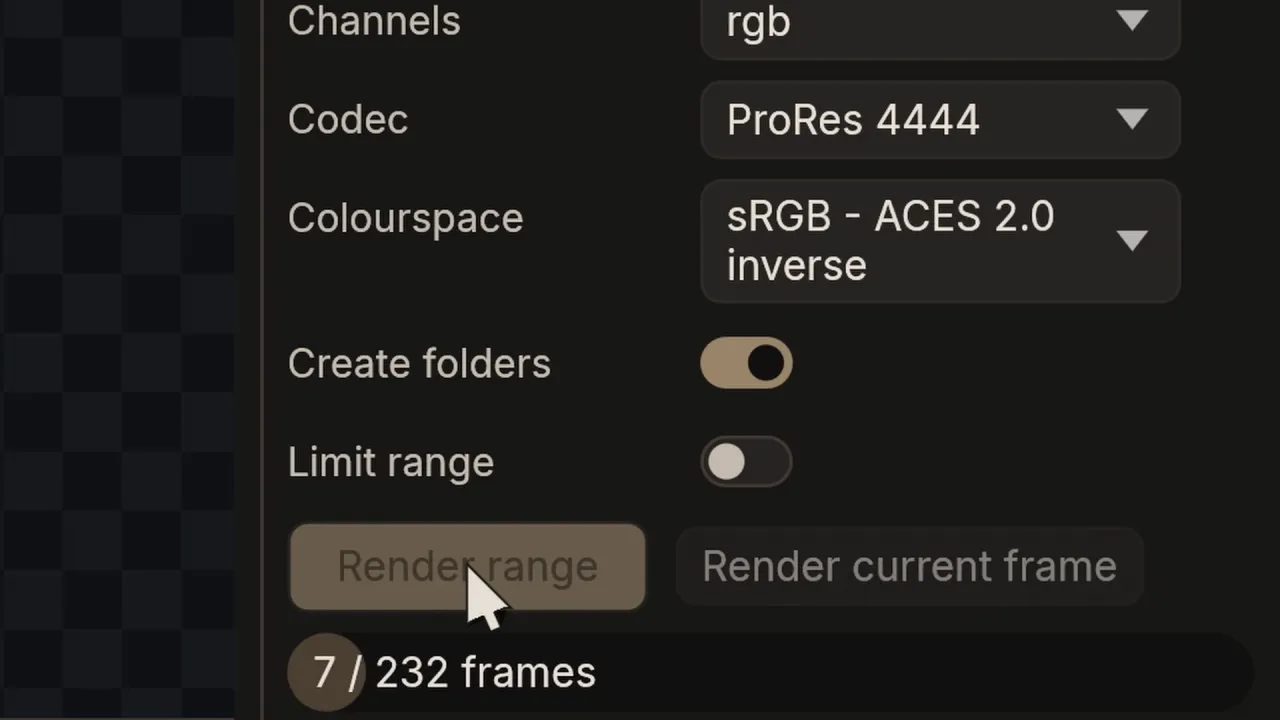
Write nodes
Render EXR, DPX, TIFF, PNG, and JPEG sequences with numbered #### or %04d patterns.
Movie export
Write one QuickTime (ProRes 422 Proxy to 4444 XQ, or H.264) or MP4 (H.264) file for the whole range. ProRes 4444 keeps alpha.
Output controls
Choose channels, half or float EXR data, ZIP/PIZ/RLE compression, color conversion, and guarded frame ranges.
Variant renders
Turn selected options into multiple outputs with Write permutations.
Headless CLI
Validate, migrate, edit, key, track, and render projects through the JSONL command-line interface: build 3D Sets, solve cameras, cut Edits, reshape roto and generate NodeGen kernels from scripts. Everything the desktop edits, scripts can edit too.
Python
Script with embedded Python, the Python editor, and an external SDK for pipeline integration.
Agent skill
Paste one line to Claude Code, Codex or Antigravity and it installs the BATIQ skill, then reads the current docs whenever you ask it to work in BATIQ.
Deadline & AYON
Send render jobs to Deadline, and use the separate AYON add-on to load images, save workfiles and publish renders with reviews.
Saved projects
Keep graphs, parameters, and animation together in JSON-based BATIQ projects that older versions migrate forward.
Collect Script
File › Collect Script… copies every file a script reads (plates, movies, USD and Alembic with their textures, LUTs, CDLs, a custom OCIO config) into one folder, beside a copy of the script that finds them there. Zip it and hand it over; it opens anywhere.
In-app updates
BATIQ checks for new releases, downloads and checksums the update, and shows the notes for every version you skipped.
Free & native
Available for macOS, Windows, and Linux. Download it and make something.